
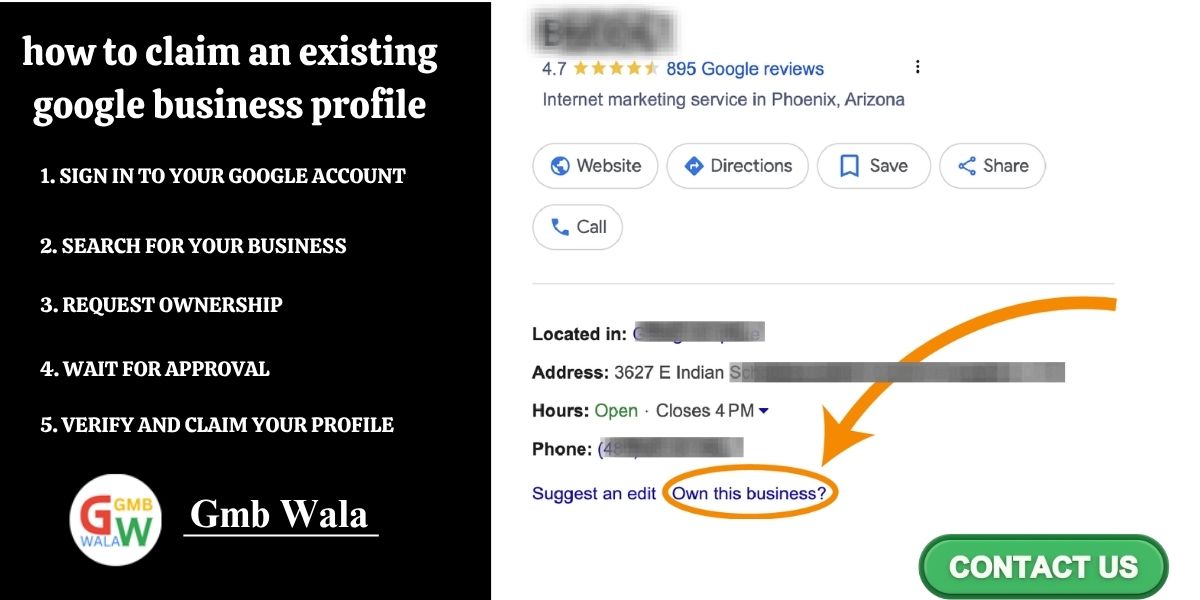
How to claim an existing Google Business Profile, Managing your online presence is essential for local businesses, and one of the most powerful tools available is Google Business Profile (GBP). However, many business owners find themselves in situations where their listing is already created—either by a customer suggestion, Google’s automatic system, or a previous owner. In such cases, knowing how to claim an existing Google Business Profile becomes extremely important. This detailed guide will walk you through the process step-by-step, explain common issues, and help you take ownership of your listing quickly and effectively.
1. Full Control Over Business Information
How to claim an existing Google Business Profile, When you claim your profile, you can manage:
- Business name
- Address & location
- Hours of operation
- Website link
- Service areas
- Photos & posts
If the listing is unclaimed or owned by someone else, wrong information may mislead customers.
2. Better Visibility in Google Search & Maps
An optimized Google Business Profile helps you appear in:
- Local search results
- Google Maps results
- “Near Me” searches
This increases foot traffic, website visits, and calls.
3. Build Trust With Customers
Customers rely heavily on Google profiles. A verified business appears more credible and professional.
4. Ability to Access Reviews and Messaging
Only the verified owner can:
Track insights
Respond to reviews
5. Prevent Unauthorized Access
Claiming your listing protects it from misuse or incorrect updates by competitors or random users.
Step-by-Step: How to Claim an Existing Google Business Profile
If you want to know how to claim an existing Google Business Profile, follow these simple yet detailed steps, How to claim an existing Google Business Profile.
Step 1: Sign in to Your Google Account
Visit: https://business.google.com/
Log in using the Google account you want to manage the business with.
It’s advisable to use a business email instead of a personal one.
Step 2: Search for Your Business
In the search box:
- Type your business name
- Add the city or address for accuracy
If Google has an existing listing, it will appear.
Step 3: Select the Existing Business Profile
When the listing appears:
A message will appear:
“This profile has already been claimed.”
Click on your business name
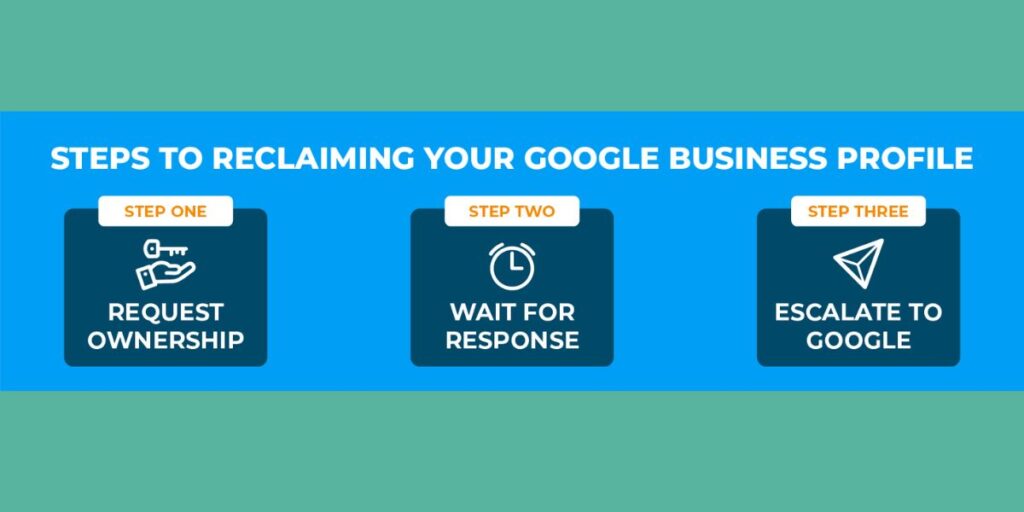
Step 4: Request Access (Ownership Request)
Google will display a partially hidden email of the current owner (example: ab***@gmail.com*).
Click “Request Access.”
You will be asked to select:
- Your relationship to the business
- What level of access you require (usually “Ownership”)
- Your contact details
Then click Submit.
Step 5: Wait for the Current Owner to Respond
Google sends the current owner an email notifying them of your request. They have 3–7 days to:
- Approve
- Deny
- Ignore
If they approve, you get immediate access.
Step 6: If the Owner Doesn’t Respond
If no action is taken within seven days:
- Google allows you to verify the business
- You’ll receive verification options such as:
- Phone call
- SMS
- Video verification
- Postcard mail
After verification, Google transfers ownership to you automatically.
Step 7: Complete Verification
Choose the verification method provided.
Most common is postcard verification, which arrives in 3–12 days.
Enter the verification code on your GBP dashboard to finalize the claim.
Common Problems When Claiming a Google Business Profile (and Solutions)
Even when you follow all steps, issues may occur. Here are the most common problems and how to fix them.
1. The Listing Is Already Owned by a Previous Employee/Agency
Solution:
Solution:
2. You Don’t Recognize the Email of the Current Owner
Google hides most of the email address for privacy.
Solution
Check:
- Old employees
- Former marketing agencies
- Old Gmail accounts you may have used
If no one claims to own it, wait for Google’s 7-day transfer period.
3. The Business Has Multiple Duplicate Listings
This commonly happens when:
- A customer suggested the listing
- You tried to create a new one
Solution:
Claim the correct profile → Ask Google Support to remove duplicates.
4. Verification Postcard Not Arriving
Common causes:
- Incorrect address
- Remote area
- Large building where mail gets lost
Solutions:
- Update the address properly
- Add clear instructions (e.g., “Suite 203”)
- Contact Google Support for alternative verification
- Request video verification
5. Business Was Marked as “Permanently Closed”
Solution:
Once you claim the profile:
- Go to Info
- Change status to Open
- Submit supporting documents (if asked)
6. Your Business Is Service-Area Based (No Physical Store)
Google may ask for:
- Video verification
- Live location proof
Solution:
Show:
Utility bills with your name
Your service vehicle
Business tools
Business documents
Tips for a Faster Google Business Profile Claim Process
To speed up your ownership transfer and verification, follow the tips below:
✔ Use a Business Email
Gmail with business branding improves trust and speeds up approvals.
✔ Keep All Business Documents Ready
Google may ask for:
- Utility bill
- Business license
- Registration certificate
- Tax documents
✔ Ensure Accurate Business Information
Matching details = faster verification.
✔ Enable All Notifications
Google sends important updates through email and mobile notifications.
✔ Respond Quickly to Verification Requests
Delays on your part can slow down approval.
✔ Avoid Creating a Duplicate Listing
Always claim the existing one instead of creating a new profile.
✔ Contact Google Support for Help
Google Support is available via:
Call request
Live chat
Frequently Asked Questions (FAQ)
1. How do I claim an existing Google Business Profile if I don’t know who owns it?
Just submit an ownership request.
If no one responds in 7 days, Google will let you verify the business yourself.
2. Can I claim an existing Google Business Profile without verification?
No. Verification is required to prevent unauthorized access.
3. How long does the ownership request process take?
Usually 7 days.
If the current owner approves earlier, it’s faster.
4. What if the previous owner denies my request?
You can file an appeal.
Google may ask you for:
- Business documents
- Photos
- Proof of physical access
5. Can multiple people manage the same Google Business Profile?
Yes.
The owner can add:
- Managers
- Co-owners
6. What if my business has moved to a new location?
After claiming the profile:
- Update the address
- Re-verify the new location
7. Will claiming the profile affect my existing reviews?
No. Reviews remain the same even if ownership changes.
Final Conclusion
Knowing how to claim an existing Google Business Profile is essential for any business that wants to maintain control over its online identity. Whether your listing was created automatically or by someone else, claiming it ensures accuracy, improves visibility, boosts customer trust, and protects your brand from unauthorized edits.
The process is straightforward:
- Find your business
- Request access
- Verify ownership
- Optimize your profile
By following the step-by-step method, troubleshooting common issues, and using the tips shared above, you can smoothly claim and manage your Google Business Profile with confidence.