Verify Your Google Business Profile
If you want your business to appear on Google Search and Google Maps, there’s one major step you can’t skip: verifying your Google Business Profile (GBP). Verification confirms that your business is legitimate, gives you ownership of the profile, and allows you to manage how your company appears in local search results.
Verify Your Google Business Profile, In this guide, you will learn how to verify your Google Business Profile, why the process matters, the different verification methods available, common issues that may arise, and practical tips to help you get approved faster. Whether you’re a local shop, service professional, or online-based company, this walkthrough ensures you complete verification smoothly and successfully.
Why Verification Is Important
Google requires every business to go through a verification process before the profile becomes visible publicly. Here’s why it matters:
1) Confirms Your Business Legitimacy
Verify Your Google Business Profile, Verification proves your business is real and prevents others from claiming your listing.
2)Unlocks Profile Management Features
Once verified, you can:
- Edit business information
- Add photos and videos
- Respond to customer reviews
- Use messaging and call tracking tools
- Access Google Insights and Analytics.
3) Boosts Local Search Visibility
Verify Your Google Business Profile , Verified businesses have better trust signals, improving their chances of appearing:
- In the local 3-pack
- On Google Maps
- For “near me” searches
4) Protects Against Unauthorized Changes
Unverified profiles are more vulnerable to edits suggested by the public or competitors.
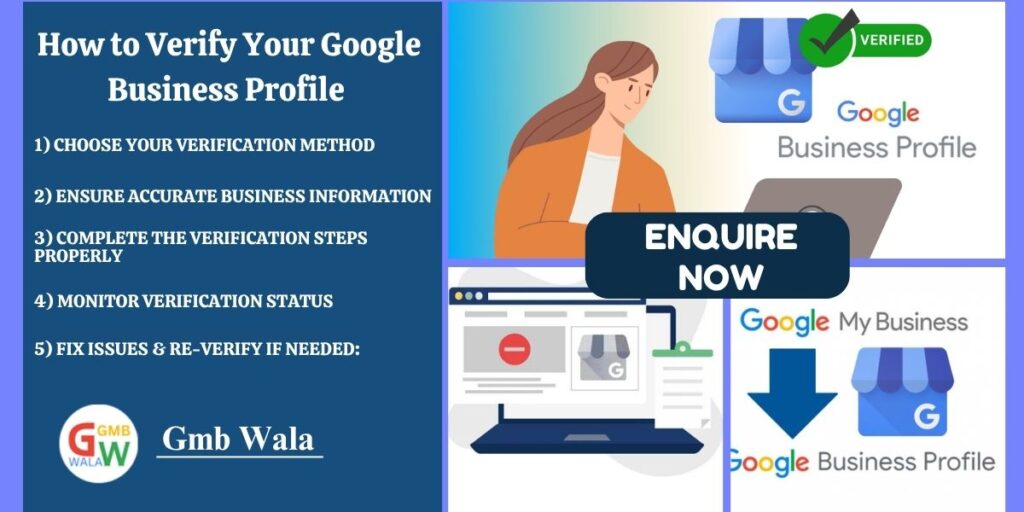
How to Verify Your Google Business Profile
Verify Your Google Business Profile, Below is the complete, easy-to-follow process for verifying your business.
Step 1: Sign In and Create Your Google Business Profile
- Visit the Google Business Profile Manager (business.google.com).
- Sign in using your Google account.
- Enter your business name and category.
- Add essential details such as:
- Business address
- Service areas (if applicable)
- Contact number
- Website link
Once the initial setup is done, Google will prompt you to proceed with verification.
Step 2: Choose a Verification Method
Verify Your Google Business Profile, Google offers multiple ways to verify your business, though availability depends on your business type, location, and industry. The most common methods include:
1) Postcard by Mail
- Google sends a postcard containing a unique verification code to your business address.
- Verify Your Google Business Profile, It usually arrives within 5–14 days.
- Once received, enter the code in your GBP dashboard.
Best for: Brick-and-mortar businesses with a physical location.
2) Phone Verification
- Verify Your Google Business Profile , Google calls or sends an SMS with a verification code.
- Enter the code instantly to complete verification.
Best for: Service-area businesses and certain verified industries.
3) Email Verification
- You receive a verification link or code at your business email address.
- Verify Your Google Business Profile, Click the link or enter the code to finish the process.
Best for: Businesses with existing domain-verified emails.
4) Video Verification
Google may require a video to prove:
- Your business location
- Inside your office/store
- Business equipment, tools, or signage
- Proof of ownership
You may do this in two ways:
- Live video call with a Google representative
- Recorded video upload showing required evidence
5) Instant Verification
If your website is already verified in Google Search Console, you may qualify for one-click instant verification.
Best for: Businesses already managing their domain with Google Search Console.
Step 3: Enter Your Verification Code (If Applicable)
Once you receive your code (via postcard, phone, or email):
- Log into your Google Business Profile Manager.
- Open your business dashboard.
- Select “Verify Now.”
- Enter the code exactly as provided.
Your listing will typically be verified instantly after entering the correct code.
Step 4: Complete Your Business Profile
After verification, maximize your visibility by completing your profile:
Essential items to update:
- Business hours
- Products and services
- Photos, logos, and cover images
- Description of your business
- FAQ or messaging settings
- Appointment links (if applicable)
The more complete your profile is, the more trust Google builds in your business—leading to better search performance.
Common Problems and How to Fix Them
Even though the process is straightforward, some businesses face verification challenges. Here are the most common ones and how to resolve them.
1) Postcard Didn’t Arrive
Possible Causes:
- Incorrect address
- Mail delays
- Your business location is hard to identify
Solutions:
- Double-check your address formatting.
- Add clear signage (Google may check via street view).
- Request a new postcard from your dashboard.
2) Verification Method Not Available
Sometimes only one method appears, or none at all.
Fix:
- Update your business information to ensure accuracy.
- Remove inconsistent info found on your website or other directories.
- Contact Google Support and request manual review.
3) Video Verification Was Rejected
This usually happens when:
- Google cannot confirm your business location
- Your video didn’t show required proof
- Lighting or clarity was poor
Solutions:
- Retake the video clearly showing signage, tools, workspace, or storefront.
- Follow the exact prompts provided by Google during the recording.
- Upload or re-schedule the video verification.
Suspended After Verification Request
Listings may get suspended if Google detects:
- Policy violations
- Poor business category choices
- Multiple listings for the same address
Fix:
- Submit a reinstatement request
- Provide documents such as utility bills, permits, or lease agreements
- Ensure your business complies with Google’s guidelines
Duplicate Listings
Duplicate profiles cause delays or automatic suspensions.
Solutions:
- Remove or merge duplicate listings
- Verify only one primary profile
Tips for Faster Google Business Profile Verification
Here are several proven strategies to speed up your verification process.
1) Ensure Consistent NAP Information
NAP = Name, Address, Phone Number
Make sure it matches everywhere online:
- Website
- Social media
- Directories (Yelp, Bing, etc.)
2) Use a Real Physical Address (Not P.O. Boxes)
Google does not accept P.O. boxes or virtual office addresses for local businesses.
3) Add Photos Before Verification
Uploading exterior and interior photos helps Google confirm your legitimacy.
4) Turn On Location Services
If using mobile verification, Google may check your GPS location.
5) Respond Quickly to Google Requests
If Google asks for:
- Additional documents
- A new video
- Clarification
Responding fast will shorten the approval timeline.
6) Avoid Frequent Edits During Verification
Major changes to your address, category, or name may reset the verification process.
Q) Frequently Asked Questions (FAQ)
1. Can I verify my business without an address?
Yes. Service-area businesses can verify using video, phone, or email based on eligibility.
2. How long does Google Business Profile verification take?
Most methods verify instantly or within a few days. Postcard verification can take up to two weeks.
3. What happens if my verification is rejected?
You can correct the issues and request a new verification attempt. Google may require additional proof.
4. Can multiple people manage the same Google Business Profile?
You can correct the issues and request a new verification attempt. Google may require additional proof.
5. Do I need to re-verify my profile in the future?
Sometimes, yes—especially if:
- You change your address
- Your listing becomes inactive
- Google suspects incorrect information
6. Is verification different for online businesses?
Yes. You can add managers, owners, or employees by assigning roles in your dashboard.
Final Conclusion
Understanding how to verify your Google Business Profile is essential for every business that wants to appear in Google Search and Maps. Verification not only confirms your business identity but also opens the door to improved visibility, customer engagement, and credibility. Whether you use a postcard, phone, email, or video method, completing this step ensures you have full control of your online presence.
By following the step-by-step guidance, troubleshooting common issues, and applying optimization tips, you’ll be able to verify your profile quickly and start attracting more customers. A properly verified and optimized Google Business Profile is one of the most powerful tools for local SEO—and it all starts with the verification process.